How to check timesheets before payroll, step by step
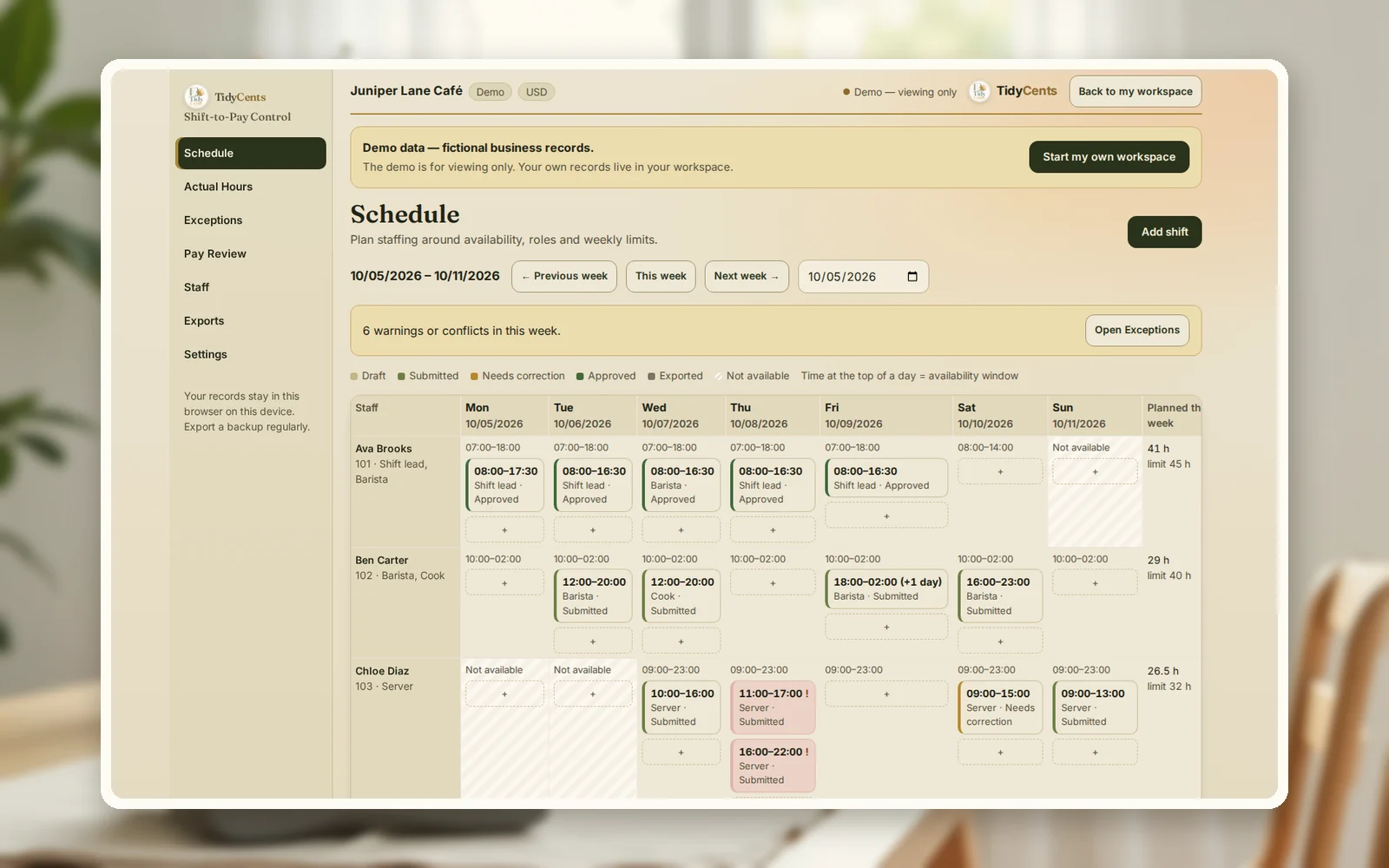
To check timesheets before payroll, compare every recorded shift with the plan, clear anything that cannot be paid as it stands — a missing clock-out, two overlapping shifts, a break longer than the shift — then apply your overtime and break rules, add commissions, bonuses and tip shares, and approve each person's week before it goes to payroll. In the example below, a café's week has 21 shifts and 140.78 worked hours. Three entries block approval, five need a look, and one was sent back. The shift lead's week is clean and comes to $830, including one hour of overtime.
Why timesheet errors reach payroll
Most payroll mistakes in a small business are not arithmetic. They are entries nobody questioned:
- Missing times. Someone forgot to clock out, and the shift is either unpaid or paid as planned without proof.
- Overlaps. The same person appears on two shifts at the same time, often from a copied schedule.
- Wrong role or rate. A barista covers the kitchen at a different rate, or a raise starts mid-week.
- Overtime rules applied by memory. Daily and weekly limits are easy to miss in a spreadsheet.
- Extras entered twice. A commission for the same order goes in twice from two people.
- Tips split by feel. Without hours, a tip pool is hard to explain to the team.
Each of these is cheaper to fix before payroll than after, when it becomes a correction, a repayment or a conversation.
The rules to write down first
Before checking anything, agree on the rules that turn minutes into pay. The demo uses one set; yours depend on your jurisdiction and agreements:
- Worked minutes = actual end − actual start − unpaid breaks (with your rounding step, if any).
- Daily overtime = worked minutes above a daily threshold (the demo: 8 hours).
- Weekly overtime = regular minutes above a weekly threshold (the demo: 40 hours), without counting the same minute twice.
- Overtime pay = overtime hours × rate × multiplier (the demo: 1.5).
- Rate = the rate valid on the shift's date, so a raise applies only from its start date.
- Tip share = pool × the person's hours ÷ all hours in the pool, rounded so the shares add up to the pool exactly.
A worked example
The numbers are the demo of Shift-to-Pay Control: a fictional café with five active staff for the week of 5–11 October. Breaks are unpaid.
The week at a glance. 21 shifts, 146 planned hours, 140.78 worked hours after unpaid breaks, and one shift without recorded time.
What blocks approval.
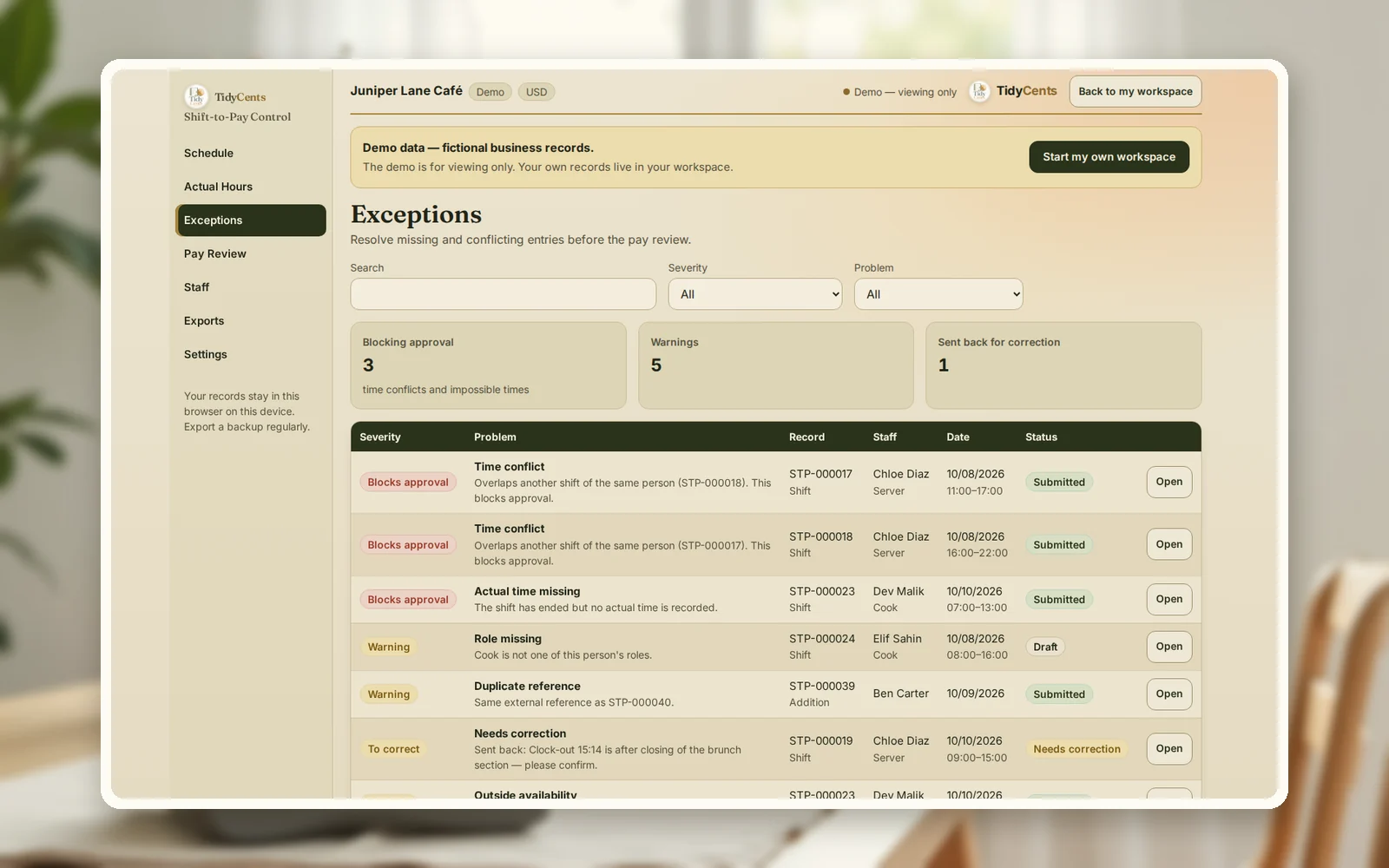
- A time conflict. A server is planned 11:00–17:00 and 16:00–22:00 on 8 October. The hour from 16:00 to 17:00 appears on both shifts, so both are blocked until one is fixed.
- A missing clock-out. A cook's Saturday shift, 07:00–13:00, has ended with no actual time. It is not paid until someone records what happened — and it is also outside his recorded availability.
What needs a look.
- A role the person does not have. A server is planned as a cook on 8 October. Maybe it is right; it should be a decision, not an accident.
- A weekly planning limit passed. The same person has 28.5 planned hours against a limit of 24.
- A possible duplicate commission. Catering order C-2041 is entered twice, once as "Catering order C-2041" and once as "catering order c-2041", $32 each at 5% of $640. The check ignores case and spaces, so the second one is flagged.
- A shift sent back. A clock-out at 15:14 is after the brunch section closed; the manager asked the server to confirm it.
A clean week, paid exactly. The shift lead earns $20 an hour. She worked 41 hours: one 9-hour day and four 8-hour days.
| Line | Hours | Amount |
|---|---|---|
| Regular time | 40 | $800.00 |
| Overtime (over 8 hours on Monday) at 1.5× | 1 | $30.00 |
| Gross for the week | 41 | $830.00 |
All five shifts are approved, so her week is ready for export to payroll.
A raise in the middle of the week. One barista's rate rises from $18 to $19 on 10 October. Shifts before that date are paid at $18, shifts from that date at $19 — no manual split needed.
A tip pool split by hours. The Saturday brunch pool of $187.45 is shared by three people who worked 7.5, 6 and 6.25 hours: $71.18, $56.95 and $59.32. The shares add up to the pool to the cent.
Step by step: check timesheets before payroll
- Write down your pay rules: thresholds, multiplier, paid or unpaid breaks, rounding. Confirm them once.
- Record actual times for every shift, with breaks.
- Clear blocking problems: overlaps, missing times, end before start, breaks longer than the shift, no rate.
- Review warnings: wrong role, outside availability, planning limits, possible duplicates.
- Send back what needs the employee's confirmation, with a note, and keep the earlier version.
- Add commissions, bonuses and fixed amounts with a reference each.
- Split tip pools by hours and check the shares add up.
- Approve each person's week and export only approved weeks to payroll.
Common mistakes
- Paying planned hours when actual time is missing. Ask first; a missing clock-out is a question, not a default.
- Fixing an overlap by deleting a shift. Correct it with a reason so the history stays.
- Applying overtime only weekly or only daily. If your rules use both, make sure the same minute is not counted twice.
- Changing a rate and recalculating old weeks. An approved week should keep the rate it was approved with.
- Entering extras without a reference. Without an order or reason, duplicates are hard to spot.
- Splitting tips evenly when hours differ. Use hours, and show the calculation.
When a tool helps
A spreadsheet can total hours. It struggles with overlapping shifts across rows, missing clock-outs, roles, raises from a given date, daily and weekly overtime together, duplicate commissions, tip pools and an approval trail. Shift-to-Pay Control puts schedule, actual hours, exceptions, pay review and export in one place, blocks approval until problems are fixed, keeps every version, and exports only approved weeks. Exact decimal arithmetic, no AI guesses. If your staff work on the road, the Field Service Day Planner plans their days with travel.
Open the demo with the café above — every screen, no sign-up — then add your own staff and shifts.
Open Shift-to-Pay ControlAll sales and daily operations tools
Related guides: how to balance a cash drawer, how many jobs fit in a day and profit per dish on delivery apps.
FAQ
What should I check on a timesheet before payroll?
That every shift has an actual start and end, breaks are recorded, no shift overlaps another for the same person, the role and rate are right for the date, overtime follows your rules, and extras such as commissions and tips have a reference and are not entered twice.
How is overtime calculated when there are daily and weekly limits?
Count minutes above the daily threshold as daily overtime, then count regular minutes above the weekly threshold as weekly overtime, without counting the same minute twice. In the example, a 9-hour day gives one hour of daily overtime, paid at 1.5 times $20.
What if an employee forgot to clock out?
Do not guess. Mark the shift as missing actual time, ask the employee and the manager what happened, and record the confirmed time with a note. Until then, the shift is not paid automatically.
How do I split a tip pool fairly?
One common way is by hours worked: each person's share is the pool times their hours divided by all hours. Round so the shares add up to the pool exactly. Check what rules apply to tips where you operate.
Does this replace my payroll software?
No. It prepares and checks approved hours and amounts and exports them; your payroll software or provider still calculates taxes, deductions and payments.
This is decision support, not legal, tax, payroll or employment advice.