Create consistent email signatures for your team
A team signature is a short business document that is repeated in thousands of messages. The design matters, but reliable employee details and a workable installation method matter more than a decorative preview. A signature that looks perfect in a design tool and then loses its logo, breaks on a phone or shows an empty "Phone:" line is not consistent — it is just consistently wrong.
This guide walks through the steps that keep a team's signatures aligned, with numbers from a fictional 180-person company.
Start with one source of employee information
Keep an internal identifier, name, role, department, location and email together in one list — not in 180 separate copies of the same layout. The identifier matters more than it seems:
- Two people can have the same name. Their identifiers should still produce separate files. A practical file name is the employee code plus a fragment of a stable internal id, for example
E-001_cf295f35.html. - Codes must be unique. If two records share the code
E-7, neither should be exported until someone decides which is which. - Optional means optional. A missing phone number should not leave an empty separator, a dangling "Phone" label or a
tel:link that dials nothing.
In the demo, Иван Петров has no phone. His plain-text signature simply goes from the brand name to the email line:
Иван Петров
Purchasing Specialist
Harbor Supply
Email: ivan.petrov@harborsupply.example
Web: https://harborsupply.example
Names in other scripts and with accents — Renée, João, Иван — must stay exactly as typed. That needs UTF-8 everywhere and a normalised form, so the same name typed on two computers is stored the same way.
Choose a conservative layout
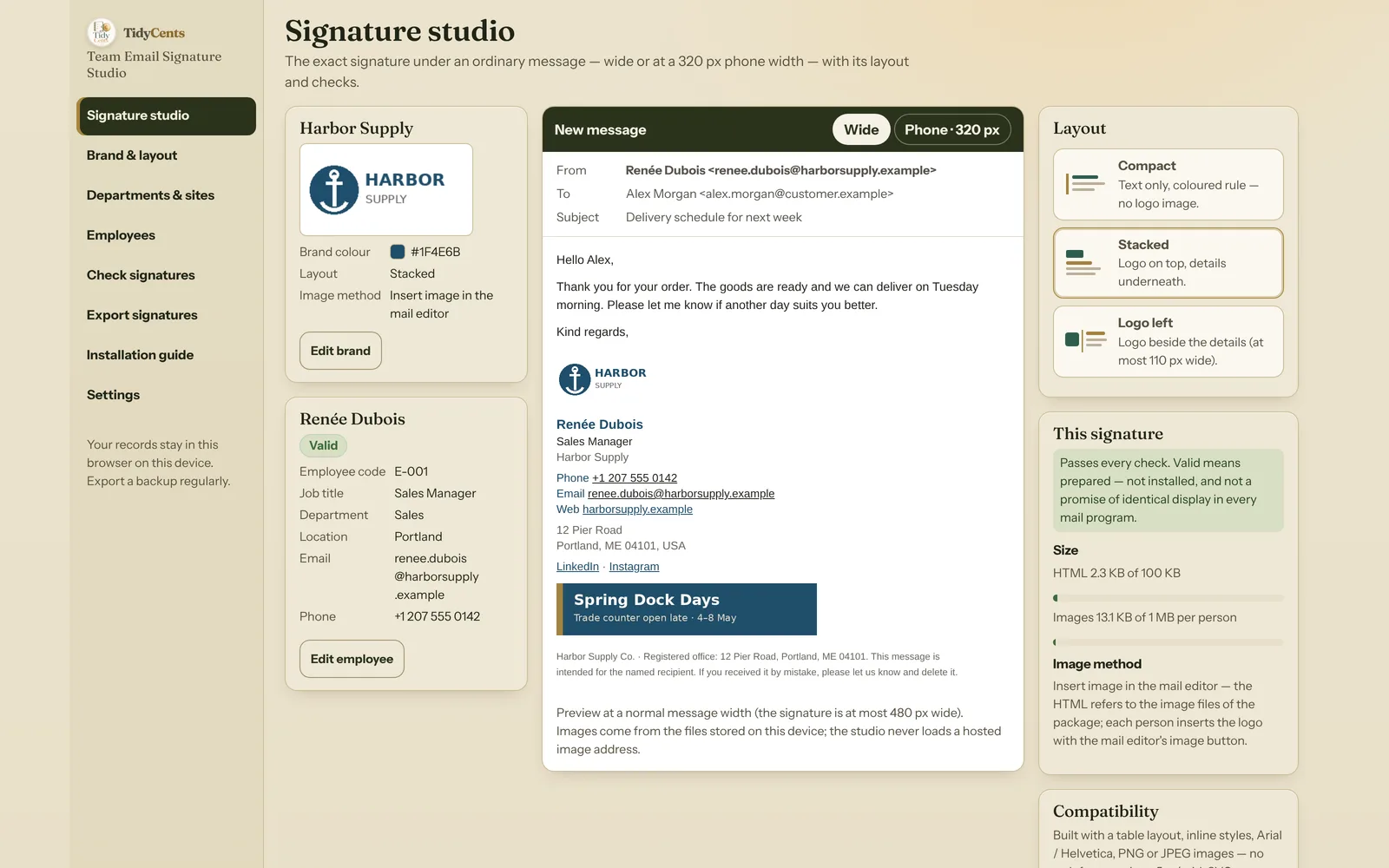
Email clients do not support website styling consistently. A signature that depends on web fonts, scripts or a complex browser layout may look convincing in a design tool and fail after installation. Table-based structure, inline styles, a system font such as Arial or Helvetica and ordinary PNG or JPEG images offer a more practical starting point — but they still need client testing.
Three fixed layouts cover most teams:
- Compact — text only with a coloured rule; no image to block.
- Stacked — logo on top, details underneath.
- Logo left — logo beside the details.
Keep the logo's own proportions. A 240 × 120 px logo shown at a width of 120 px is 120 × 60 px — never squeezed to a square. In a logo-left layout, a wide logo steals space from the text on a 320 px phone, so it is sensible to cap the logo column (the studio uses at most 110 px) rather than shrink the job title.
Test long details, not the average ones
A medium-sized company has long department names, international addresses, several brands and at least one shared mailbox. Preview the longest job title and the longest email address at a narrow width before creating the full package. Reducing every font to an unreadable size is not a proper fix.
In the demo, the shared mailbox accounts.payable.and.receivable.team@harborsupply.example is 56 characters with no space. At a 320 px phone width it is shown as two visible lines — accounts.payable.and.receivable. and team@harborsupply.example — while the mailto: link and the plain-text file keep the whole address. A 99-character job title wraps at its spaces and loses nothing.
Decide how images will be installed
This is where most rollouts break. There are two honest methods:
- Insert the image through the mail editor. The package holds the logo file, and the HTML refers to it with a relative path such as
../images/logo-harbor-supply_f46056cc.png. That keeps the files editable, but copying the raw HTML into Gmail or Outlook does not upload the logo — a mail program cannot read a file from your computer through a relative path. Each person installs the text, then inserts the logo with the signature editor's own image button. - Use a hosted HTTPS image. The HTML points to a public address such as
https://cdn.harborsupply.example/signature/harbor-marine-logo.png. You upload the image to your own website or file host first. Recipients may still block remote images until they allow them.
Neither method is "paste and it works everywhere". Write down which one each brand uses, and say so in the installation guide.
Check before export — and keep the status honest
A useful check is deterministic and specific. Before generating anything, look for:
- invalid email addresses, and line breaks hidden inside an address (a classic header-injection trick);
- links that are not
https://—javascript:,data:,file:and local network addresses should be refused outright; - phone numbers that are not in international format, so a
tel:+…link can be built correctly; - duplicate codes;
- oversized files: in the studio each image may be at most 500 KB, all images of one person at most 1 MB, and a signature's HTML at most 100 KB. A typical demo signature is about 1.7 KB of HTML plus a 2.8 KB logo.
Worked example. Harbor Supply Group has 180 people in four departments and three locations, with two brands: Harbor Supply uses the stacked layout and inserts its logo through the mail editor; Harbor Marine Services uses the logo-left layout with a hosted HTTPS logo shown at 100 × 50 px. The check returns:
| Employees | Valid | With issues |
|---|---|---|
| 180 | 179 | 1 |
The one issue is elena.brennan@harborsupply — an address without a domain ending. Exporting everyone is therefore blocked. The team can fix the address, or explicitly choose to leave that one person out; then 179 signatures are generated, and the register and manifest list who was left out and why. Nobody is skipped silently.
Generated, checked and installed are different states. "179 generated" does not mean 179 installed, and a valid file does not prove that every recipient will see it identically. A standalone generator should not claim the remote deployment features of a central email administration service.
Package it so people can actually install it
A practical package for each person contains an HTML file, a plain-text fallback with every value in full, the images it uses, and a short installation guide in the team's language. A manifest with a SHA-256 checksum per file, the employee's internal id and the template version makes it possible to see later exactly which files were handed out. A register lists who was generated and who was left out.
Do not put dates or the subject of an email into the signature itself — those belong to messages, not signatures.
Protect the data
Signature generation does not need staff passwords, private mailbox access or tracking pixels. Unsafe links and HTML should be rejected or escaped before they enter the output — a name typed as <script>alert(1)</script> must appear as harmless text, never run. Keep the employee list on your own device rather than uploading it to yet another service.
Where the studio fits
Team Email Signature Studio prepares the files, the preview and the installation package for a small team or a larger departmental list: brand and layout, departments and locations, CSV / XLSX import with every error shown before saving, a preview under a normal message at full width and at 320 px, checks, and the ZIP described above. It does not install signatures remotely, send email or track recipients. Open the fixed demo to compare the layouts and inspect the output, and use the product's stated client-test status to judge support: TidyCents has not verified Gmail, Outlook or Apple Mail with a live paste test, so a browser preview should never be treated as proof of every mail client's behaviour.
If you are also tidying up what happens when someone leaves, the Employee Exit & Access Closure Control keeps that checklist in one place.
Tools mentioned in this guide
 Interactive tool
Team Email Signature Studio
Prepare consistent email signatures for your team, with employee imports, a clear preview and practical installation files.